2010-08-22

narrowing buffer contents

'Narrowing' is yet another of those many useful emacs features that took me years to appreciate, mostly because I never really tried it. I may not be the only one, so here's a short introduction.

Narrowing is the concept of hiding the buffer contents except for what you are currently working on. This is useful when you don't want to be distracted, but also because it allows you to execute commands only on the narrowed part. You can narrow different things:

what's shownnamebinding
region (selection)narrow-to-regionC-x n n
current pagenarrow-to-pageC-x n p
functionnarrow-to-defunC-x n d
everythingwidenC-x n w

I never used narrowing for the current page, but apparently it's used by e.g. Info-Mode to show only one page.

That last one is pretty important to remember; it's not totally obvious how to get back to 'normal' mode where you can see everything. For this very reason ('where the #>*$@ did my text go'), always-helpful emacs by defaults disables narrow-to-region (but, for some reason, not the other ones). To enable it, put the following in your .emacs:

(put 'narrow-to-region 'disabled nil)

Also note that the mode-line will show 'Narrow' when you're in narrow mode, lest you forget.

When you're using org-mode there is an additional one you might want to memorize:

what's shownnamebinding
subtreeorg-narrow-to-subtreeC-x n s

I'm using that last one quite often; I have org-files where I keep meeting notes etc., and when in a certain meeting, I only want to see the notes for that specific meeting.

One bug? feature? of narrowing is that line-numbering is relative to the narrowed area rather than the full buffer. I'd prefer to have the real line numbers.

2010-07-30

some handy key bindings

Emacs offers many handy key bindings; every now and then I come across a new one, which has been hiding there somewhere for a decade or more… Here are some of my favorites – I'm listing those that are (a) often useful, (b) might not be known by everyone already (c) don't require any external packages or setup.

  • M-27 x gives you xxxxxxxxxxxxxxxxxxxxxxxxxxx; and, believe it or not, works also with different characters and numbers;
  • M-m jumps to the first non-whitespace character on the current line;
  • M-^ joins two lines into one – like vi(m)'s :join, except that point must be on the second line, not the first;
  • M-/ auto-completes based on words in all your buffers; there are more powerful alternatives, but this one does not require any setup;
  • C-h k followed by some key or key combination tells you what it does, C-h m describes the currently active modes, with their key bindings;
  • C-h f documents the current function, C-h v does the same for variables. C-h a gives you information about commands - for example to get date-related commands, press C-h a date. This will, however, also get you commands related to update; instead, you can use C-h a \bdate (because C-h a accepts regular expressions);
  • C-x C-o will delete all the empty lines around your current cursor position, except for one;
  • M-q re-aligns the current paragraph; I use it all the time when writing e-mails etc. (you might want to check out filladapt for a version that gives you a bit more smartness with indentations, lists etc.);
  • C-x 8 RET in a recent emacs version gives you an auto-completable list of special characters to insert. So if I need, say, the Yen-character, I type C-x 8 RET ye TAB and I get YEN SIGN, which RET will then insert: ¥. Note that the completion only works on the start of the character name, so if you'd want to include the α-character, you'd need to know that its UCS-name is GREEK SMALL LETTER ALPHA… (you can try *alpha or TAB the empty string, and search in the results buffer, but that's rather slow);
  • C-h l shows your last 300 key presses ('lossage'). Interesting to see, and it might be useful when defining keyboard macros.

What are your favorites? Please share them in the comments.

2010-07-21

navigating through files and buffers with the lusty explorer

I think quite a few people are using ido-mode to navigate through files an and buffers; we discussed it here already a long time ago. I am a happy ido-user myself – it took me some time to fully get full accustomed to the key bindings, but now it feels very natural. Definitely an improvement of my emacs user experience.

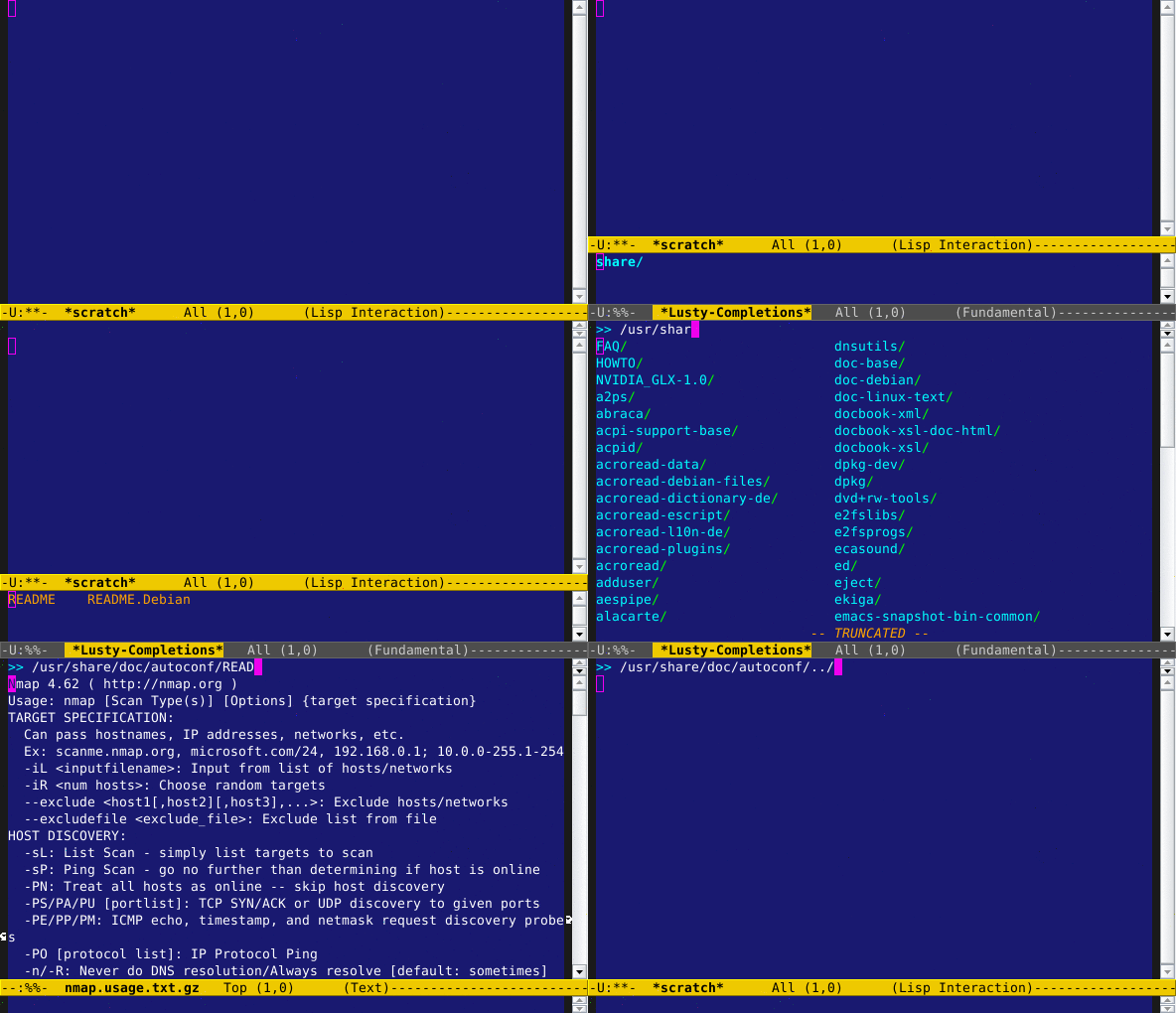
However, I am always looking for new things – and one of those is a sort-of ido-mode substitute. It's called the Lusty Explorer and it's the emacs implementation of an existing vim-plugin. It's quite similar to ido-mode; the difference is mainly that it shows all the files or buffers at the same time, in the way that shells (say, bash or zsh) do auto-completion.

The best way to show how it works is using an screencast (note, this is of a slightly older version). Lusty Explorer uses fuzzy matching; that means that I can type /etc/fo, and all items in /etc/ with names f.*o match.

To install lusty-explorer, simply copy lusty-explorer.el to your load-path, and put something like the following in your .emacs:0

(when (require 'lusty-explorer nil 'noerror)

  ;; overrride the normal file-opening, buffer switching
  (global-set-key (kbd "C-x C-f") 'lusty-file-explorer)
  (global-set-key (kbd "C-x b")   'lusty-buffer-explorer))

Side-note, the (when (require 'lusty-explorer nil 'noerror) ...) is there just make sure that no error is raised when lusty-explorer is not found, and the rest is ignored in that case. I use this construct for all packages that are not necessarily available everywhere I use my .emacs; thus, they will simply be ignored and not cause startup errors.

I've been using Lusty Explorer for about a week now, and I am quite happy with it. I still need some time (and maybe some more customization) to get used to the way it works - for example, I found the way ido-mode handles backspace a bit smarter. Also, ido-mode can be customized to a much greater extent. That might merely be a factor of the relative age of the packages – and I haven't really felt the need to customize Lusty Explorer too much. For now, I think I'm going to keep on using it. It's worth a try at least!

2010-07-16

keyboard macros

Keyboard macros are a truly classic emacs feature. Still, I only started to use them years after I got sucked into emacs – not so uncommon for emacs features… There may be more people like me, so let's raise the awareness a bit.

Keyboard macros allow you to record a number of keystrokes, and replay those at some later point. This can be a great time-saver when you need to do repetitive things. In many cases, they are an easy alternative to writing some elisp to get a job done. Note, keyboard macros are should not be confused with elisp-macros, which are something else altogether.

an example

So, when would we want to use a keyboard macro? Let's take some tedious task -- for example, we have a list of a few hundred names:

Newton, Isaac
Einstein, Albert
Maxwell, James
Turing, Alan
...

and we want to turn that into:

Isaac Newton
James Maxwell
Alan Turing
...

so, roughly, put the last name after the first name, and remove the comma.

We can solve this in different ways; we could simple change each line by hand. That's a fine solution if there are only a few lines, but it gets boring rather quickly.

Another way is to use regular expressions (see Building regular expressions); in this case, it's fairly easy to come up with one (assuming you know regular expressions). But let's see how we can solve it with a keyboard macro.

Schematically, we can solve this with the following:

actionkey
go to beginning of a lineC-a
kill (cut) the first wordM-d
delete the next two charactersDEL DEL
go to the end of the lineC-e
insert a spaceSPC
yank (paste)C-y
go to the next lineC-n

This may look like some magical incantation, but it comes quite natural when you are actually doing the editing.

An important thing to remember when working with keyboard macros is that you do your commands in such a way that they can be repeated for each line. Suppose you would select Newton with shift-select, i.e., C-SPC at the beginning of the line and pressing the right arrow key 6 times – that works for Newton, but not for Einstein. Instead, we need to use M-d ('kill-word') instead.

defining a macro

Now that we have solved the problem for a single line, let's make a keyboard macro.

We move the cursor to the first line, and start the definition by pressing C-x (, or alternatively, F3. Then, we press the commands C-a, M-d, DEL DEL, C-e, SPC, C-y, C-n (as in the list above). To finish the definition, press C-x ), (or F4).

Hurray, we have our macro. Now, let's use it.

using the macro

Now, to execute the last defined macro, you press C-x e. We could repeat that for our whole list, but fortunately there's an easier way to repeat a macro n times, using a prefix argument. For example, to repeat the macro 123 times, you first press C-u 123 and then C-x e.

There's a slightly shorter way to do this: instead of C-u 123 we can write M-123, and for C-x e we can use F4 (kmacro=end-or-call-macro).

You can even repeat the macro until the end of the buffer is reached with C-u 0 C-x e; this only makes sense if the macros ever reaches the end of the buffer of course. (Remember that you can always terminate with C-g, keyboard-quit)

You can also apply your keyboard macro to all lines in the selected area (region) with M-x apply-macro-to-region-lines (or C-x C-k r). Important to remember: this will actually move the cursor (point) to the start of each line, and then execute the macro. If you want your macro like that, the go-to-the-next-line should not be part of your macro, or you will be skipping lines.

saving macros for later use

If you want to use multiple macros, you can name them. You can do this with M-x name-last-kbd-macro. If you name your macro, say, foo (inventive as we are), you can then execute it after that as M-x foo, which will be available until you exit emacs.

If you want to have the macro for future emacs sessions as well, you can use insert-kbd-macro, which will give you an elisp version of your macro. For our example, this will look like:

(fset 'foo 
   [?\C-a ?\M-d delete delete ?\C-e ?  ?\C-y ?\C-n])

Not very readable, but we can put this in .emacs, and we can use it the next time we start emacs as well. We can also add a key binding for this, for example:

(global-set-key (kbd "C-c f") 'foo)

This will bind foo to C-c f.

final notes

Keyboard macros can be useful and easy, but they are fundamentally connected to key presses – so, if you remap your keys to something different, your macros may not work anymore. Also, the macros are pretty much write-only in the way we use them here. You can edit them in the macro editor though, with M-x edit-kbd-macro M-x foo; we'll then get something like:

;; Keyboard Macro Editor.  Press C-c C-c to finish; press C-x k RET to cancel.
;; Original keys: C-a M-d 2*<delete> C-e SPC C-y C-n

Command: foo
Key: none

Macro:

C-a                     ;; move-beginning-of-line
M-d                     ;; kill-word
2*<delete>              ;; delete-char
C-e                     ;; move-end-of-line
SPC                     ;; self-insert-command
C-y                     ;; yank
C-n                     ;; next-line

Keyboard macros can be quite a useful trick in your arsenal. And I have not even gone into more advanced tricks like macros with variations or the macro ring. Please refer to the section Keyboard macros in the emacs manual (C-h r) for all the details.

And, finally, don't let the text-based example limit your imagination – you can turn just about any repetitive sequence of tasks into a macro.

2010-06-30

console apps in emacs with multi-term

multi-term

updated Whenever it makes sense, I try to use emacs for my computer-based activities; surely, programs like The Gimp or a graphical web browser cannot yet be replace by emacs, but I'm making progress. I like the ways emacs gives me to automate and speed-up my tasks; I get some return-on-time-investment.

2010 or not, I still spend quite a bit of time on the console. So why not do that from within emacs? There different ways to run shells within emacs.

The simplest one is shell (i.e,, M-x shell), which starts a simple shell, which does not support which does not support 'graphical' console applications, such as mutt, mc, htop.

Then there are term and ansi-term (M-x ansi-term) that do support such applications, which ansi-term supporting colors as well (it seems to have become the default for term in recent emacs versions).

Another one is the nifty EShell (included with emacs), which is not just a (simple) terminal, but also a full shell environment, and has integration with other things in emacs. It's nice, but has some of the limitations that shell has - you cannot run 'graphical' applications; also, I don't really need a shell, as I am quite happy with zsh (zed shell) already, which is more powerful, and I prefer a shell that works both inside and outside emacs.

For all these reasons, I am using MultiTerm, which has 'graphical' support that ansi-term has, but adds a nice extra, namely support for multiple terminals within emacs. I'm not fully up to date with the exact difference in the terminal support between the two, but I haven't had any problems so far.

You can install multi-term (put it in your load-path), and add the following to your .emacs:

(autoload 'multi-term "multi-term" nil t)
(autoload 'multi-term-next "multi-term" nil t)

(setq multi-term-program "/bin/bash")   ;; use bash
;; (setq multi-term-program "/bin/zsh") ;; or use zsh...

;; only needed if you use autopair
(add-hook 'term-mode-hook
  #'(lambda () (setq autopair-dont-activate t)))


(global-set-key (kbd "C-c t") 'multi-term-next)
(global-set-key (kbd "C-c T") 'multi-term) ;; create a new one

With this, C-c t will jump through your multi-term buffers (create a new one if it doesn not exist yet), while C-c T unconditionally creates a new terminal.

2010-06-17

automatic pairing of brackets and quotes

Some text-editors, notably TextMate for MacOS, have a nice feature where inserting a opening ( will automatically insert the closing ), and put the cursor in between them (and does same for [], {}, and various quote-marks).

Not surprisingly, there are some implementations for emacs as well; the best one I have found so far is called autopair, which was written by João Távora. It usually does things just right. Do things 'just right' is essential for such a tool; even small annoyances can disturb your flow. Autopair tries to do whatever makes the most sense for a given mode (programming language etc.), but it can be tuned as well.

After installation, you can automatically activate it for all modes with (in your .emacs):

(require 'autopair)
(autopair-global-mode 1)

Now, evaluate this or restart emacs, and enjoy the autopairing-magic!

Except for autopairing, autopair also takes care of autocleaning; that is, if I press ( it turns that into () (the pairing part), and if I press Backspace then, it removes the whole () (the cleaning part). This makes things much less annoying if you type a pair by accident. Autopairing is the kind of thing that can get annoying quickly if it does not things exactly right – and autopair succeeds!

Another nice trick it offers is autowrapping – that is, I select a word, press ", and automatically it's turned into "word". To enable that, you need to add the following:

(setq autopair-autowrap t)

Note: you might want to see the notes below about delete-selection-mode and cua-mode.

Anyway, autopair with autowrap makes for a really smooth editing experience, I love it! There are two small issues for me though. First, when the cursor in front of some non-whitespace, I'd like autopairing not to happen, and second, somehow I can't seem to get "-autopairing to work in org-mode; of course, that could be my own fault. These things might be tunable; I haven't tried very hard yet.

delete-selection-mode

Important to mention here is that autopair is (by default) not fully compatible with delete-selection-mode. As you may know, that is the mode that causes emacs to replace the current selection with a character typed, similar to what most other programs do. I think many people have it enabled in their .emacs with something like:

(delete-selection-mode 1)

If you want to keep on using that together with autopair, add the following to your .emacs:

(put 'autopair-insert-opening 'delete-selection t)
(put 'autopair-skip-close-maybe 'delete-selection t)
(put 'autopair-insert-or-skip-quote 'delete-selection t)
(put 'autopair-extra-insert-opening 'delete-selection t)
(put 'autopair-extra-skip-close-maybe 'delete-selection t)
(put 'autopair-backspace 'delete-selection 'supersede)
(put 'autopair-newline 'delete-selection t)

But, not that that still won't give you the autowrap behavior mentioned above. For that, we can use cua-mode.

cua-mode

We discussed CUA-mode before, focusing on its nice rectangle-editing features. But CUA-mode can also be an alternative for delete-selection-mode, and it goes together more nicely with autopair; so, instead of delete-selection-mode and the put's, add the following to your .emacs:

(setq cua-enable-cua-keys nil)           ;; don't add C-x,C-c,C-v
(cua-mode t)                             ;; for rectangles, CUA is nice

See the linked CUA-mode article for the 'why' of that first line. With this change, autopair should be working smoothly, including autowrap.

further customization

As I have hinted at, autopair can be tuned for different modes, and can differentiate between it's behaviour in literal strings, code, comments etc. The default are usually sane, but if you're interested, have a look at the documentation, in particular autopair-extra-pairs and the More tricks-section in the documentation.

2010-06-10

worldcup games in your org-mode agenda

A significant part of the world population will be watching the Football World Cup in South-Africa this month. For people who use org-mode to organize their lives, find the schedule of all the games in this message I sent to the org-mode mailing list.

In order to have the games show up in your agenda, make sure the file is in your org-agenda-files. If needed, you could add it with something like in your org-mode settings:

(add-to-list 'org-agenda-files "~/org/fifa-worldcup-2010.org")

One small issue with the schedule is that it use the South-African times, and there is no automatic way to adjust times for the local time zone. As a work-around, Juan Pechiar provided the following function which makes it easy to update all org-timestamps in a file:

(defun uphours (n)
  "update all timestamps n hours"
  (interactive "nAdd hours: ")
  (save-excursion
    (goto-char (point-min))
    (while (re-search-forward "[[<]" nil t)
      (when (org-at-timestamp-p t)
        (org-timestamp-change n 'hour)
        ))))

Evaluate this function (in emacs, put your cursor after the last ")"), then press C-x C-e. After that, you can go to the file with the world cup schedule, and give an M-x uphours, provide the offset for your timezone, compare to South-African time (positive or negative).