2010-09-27

interview with Eric Ludlam (CEDET)

One of the notable new features of emacs 23.2 was the inclusion of CEDET. CEDET adds IDE-type functionality to emacs, and one only needs to read the responses to the 100th post to see the great interest in that.

The man behind CEDET is Eric Ludlam (EML), a long-time Emacs user and developer. He kindly answered the many questions we had for him. Thanks, Eric!

djcb: Eric, could you tell us a little bit about yourself? And about that fantastic hobby of yours, building siege engines?

EML: I manage a software engineering team at the MathWorks. The MathWorks are the creators of Matlab. In my spare time I maintain CEDET, the Matlab support for Emacs, and build replicas of ancient siege engines.

I've been building catapults of various types for use at the World Championship Punkin' Chunk since 1998. My team started with a traction trebuchet, then a HCW Trebuchet, then moved to Human Powered Centripetal, and finally to the torsion division with MistaBallista. As far as I know, Mista Ballista is the worlds largest farthest throwing currently functional ballista.

Most recently, I got to help demolish a building where I work by shooting stuff at it, which was a lot of fun.

djcb: How did you get involved with Emacs? Do you spend a lot of time with it?

EML: I've been hacking Emacs since version 18.54 on Ultrix because the alternative was vi. My first post (and thus contribution to Emacs) was to gnu.emacs.sources on June 6, 1992. I've used Emacs to work on C/C++ code for many years which inspired all the various parts of CEDET, but these days I don't get much coding time.

My work with Emacs and CEDET is seasonal currently. The summers are usually busy with family activities, and my falls are busy getting the catapult ready, so CEDET work usually happens in the winter.

djcb: Can you tell us a bit about the background of CEDET?

EML: I started with some really basic editors and eventually with LSE (Language Sensitive Editor) on VMS. LSE was pretty cool. When I switched OSes to Ultrix and was forced to use Emacs, and discovered you could script it, I was hooked. My first big Emacs hack was etalk, an implementation of Unix talk in Emacs.

In one of the Emacs related newsgroups, a spoof story floated around about how Emacs became sentient, and started writing code for Richard [Stallman] instead of the other way around. Since then I've always wanted to get Emacs to start writing my code for me. I wrote cparse.el, a regexp nightmare that could parse almost any C file into a sequence of highly detailed tags. The tags could be used to then generate code, and I had a cool comment writing utility, automatic prototype generation, and some navigation features. On the whole it failed for many reasons.

The concept, however, continued. CParse became the basic idea behind what is now the Semantic package in CEDET, though none of the old stuff remains beyond some echos in some SRecode utilities.

My end goal is to provide round-trip code management in Emacs. Emacs needs to be able to read your code, allow you to perform transformations in the code in an abstract way, and then write new code for you. Everything in CEDET is building toward that goal. It is taking a long time, and you can see it starting to take shape. Semantic can parse the code, COGRE can manipulate UML diagrams representing your code, and you can export diagrams into code through SRecode. Unfortunately this isn't a round-trip solution as the generated code currently should not replace existing hand-written code.

Can you tell us a bit about the CEDET-project?

EML: I maintain CEDET and field questions on the mailing list. There are several contributors who either own some tool in the "contrib" area, fix bugs, answer questions or apply patches for new features. There has always been someone to pick up the slack when I'm busy elsewhere, and I've greatly appreciated that.

The easiest (and most common) way to contribute code to CEDET is to provide support for some new language, or to create a language agnostic tool using the CEDET APIs. As with Emacs, you need to be able to assign copyright to the FSF to contribute to CEDET's core, but new language support or utilities can have a home in the contrib area as well.

djcb: CEDET is part of Emacs since 23.2. Can you tell us a bit about how that happened?

EML: I've been providing assignments for the parts of CEDET since 1996 or so. For Emacs 23.1, CEDET was at a stable and useful enough state that Chong Yidong was willing to do the work to integrate it into Emacs. My ability to get a legal release for CEDET in time for Emacs 23.1 failed, so it went into 23.2 instead. It is my understanding that CEDET's smart completion engine reached a performance and reliability point that made it desirable to have in Emacs.

Emacs currently includes the parts of CEDET needed to make EDE, the project management system, Semantic and it's user tools, and SRecode all work from a user perspective. Emacs lacks the Semantic development environment, needed for writing new language support, and COGRE, the UML diagram editing tool.

djcb: Are there plans to include those parts as well?

Yes. It is important for users with a stock Emacs to develop new languages using the missing Semantic development tools. I don't know if COGRE will ever go in, though I expect that this will be done via the new package management system [elpa].

djcb: Did you ever try IDEs such as Eclipse? How do you think CEDET stacks up against such programs?

EML: I have used Visual Studio more than Eclipse, and certainly watched demos on how these and other tools work.

These tools win over CEDET's features in that they usually integrate directly with the compiler, VM or whatever, and have very good completion engines and UIs that you can interact with.

CEDET wins in that you don't need a compiler, or even code that can compile for it to work and start providing useful completions. It can infer an awful lot from a project.

CEDET's language support structure is thus simple in comparison, and CEDET supports many more languages as a side effect. It also wins because it is in Emacs, and I've done my best to try and match the "Emacs Way". For an Emacs user, this is intuitive, but can appear quirky to outsiders.

djcb: What about other development tools for in emacs?

EML: There are a lot of language specific solutions like GCCSense, slime, JDEE, and others out there. These projects are great in that they take a language, and push it to the edge of what you can do, and the users generally love that stuff. When someone wants to do the same thing, like when CSDE started for C#, and it tried to copy JDEE, it was just that, a copy that didn't quite make it.

It is my hope that CEDET will become the target of choice for users who want to make their language support in Emacs the best. They will save a lot of time doing so as well. The same infrastructure for integrating in external tools can be used to get improved results out of CEDET, but CEDET will handle converting that into a representation that would then allow any tool built on CEDET to work. This is the same model that worked well for comint.el, and gud.el.

Yasnippet is a bit different in the way it "competes" with SRecode. My first implementation of SRecode tried recycling tempo templates, but I couldn't get it to work. In fact all the template systems I investigated fell short of what I was trying to do, so I had to roll my own, and ended up using a variant of the Google template format.

The key difference is that the goal was for SRecode to provide a series of base templates for code generation. A tool writer would then write some tool to generate code. A user would then use the tool, and say "This is great, how do I change where the { goes?"

The answer is to override the template with that detail in it without interfering with the system templates. That only works if the templates are sufficiently granular that the changed template can be simple. Template reuse needs to be high so that if your company formats your methods as:

int mymethod() { implementme() };

instead of

int mymethod() {
}

that one template change will allow this to happen for all code generated from every tool.

Thus, the audience for yasnippet and SRecode is quite different. Of course you could do yasnippet like things with SRecode if someone took the time to improve the field-editing feature in SRecode, but that has not been my focus.

djcb: Do you follow the overall Emacs development process? Are there things you would like to see changed/improved?

EML: I watch the emacs-devel mailing list, mainly to see if anything related to CEDET goes by that I can help with, or what the latest cool feature might be. My first contribution of Speedbar to Emacs in Emacs 20 helped drive some features related to overlines, boxes, and other face attributes that appeared in Emacs 21.

In the future, once CEDET and Emacs cross merge techniques are hashed out, I would expect some key parts that need performance improvements might move into C. Another part of CEDET that I'd love to see become bound closer to Emacs is mode-local.el. It tries to simulate mode-local variables and mode-local functions. This is critical in a complex system like CEDET that needs to provide a language support author with fine grained control. There are good reasons not to make what is currently implemented "the Emacs way", but it would be nice to resolve those and enable mode authors a with a more powerful way to customize the user experience.

djcb: Do you have specific plans for CEDET in the future?

EML: Here is the short list:

  • Improve Emacs/CEDET cross merging
  • Offload tag storage to an external process - needed for scalability
  • Design/define a "CEDET mode" as a way of simplifying the confusing array of distinct tools and modes that make up CEDET now.
  • Finish the smart-context menu project
  • Resolve the "code replacement" problem of parsing a block of code, transforming it, and re-creating that code in place reliably.
djcb: In addition to all these 'generic' improvements, are there specific areas where new contributors could make a difference?

EML: Supporting new "stuff" in CEDET is one big win. Stuff can be:

  • New project types under EDE to ease transition from something like Visual Studio to Emacs.
  • Language support, such as parsers, or mode overrides. Finding ways to take existing cool tools, like JDE's beanshell, or slime's inferior lisp process and allowing it to do work for CEDET is another big win.
  • Templates for code generation in new languages.

Tool writing would also be good. JDEE's author Paul Kinnucan converted many bits of JDEE to CEDET and co-designed many of CEDET's parts along the way, such as semanticdb, and that was a huge help. ECB's current maintainer Klaus has also had a big impact on the way concepts are abstracted to a tool that depends on CEDET.

Naturally, joining the mailing list and fixing reported bugs and improving the doc is also a huge help, but not as exciting as writing new code. :)

djcb: Finally, many people want to start using CEDET, but it seems they have a bit of trouble to get started. Do you have any recommendations for them?

EML: Start with the cedet.info file which has many of the common setup configurations in it. If you run into something not explained well or at all, be sure to join the mailing list and be specific about how that doc failed. Very few questions on the mailing list refer to the doc, so the doc is rarely improved in a way that can help others.

Another good starting point is Alex Ott's article A Gentle Introduction to CEDET, which is very helpful.

Thanks a lot for your time, Eric! Wishing you a lot of success with CEDET and all your other projects!

2010-08-22

narrowing buffer contents

'Narrowing' is yet another of those many useful emacs features that took me years to appreciate, mostly because I never really tried it. I may not be the only one, so here's a short introduction.

Narrowing is the concept of hiding the buffer contents except for what you are currently working on. This is useful when you don't want to be distracted, but also because it allows you to execute commands only on the narrowed part. You can narrow different things:

what's shownnamebinding
region (selection)narrow-to-regionC-x n n
current pagenarrow-to-pageC-x n p
functionnarrow-to-defunC-x n d
everythingwidenC-x n w

I never used narrowing for the current page, but apparently it's used by e.g. Info-Mode to show only one page.

That last one is pretty important to remember; it's not totally obvious how to get back to 'normal' mode where you can see everything. For this very reason ('where the #>*$@ did my text go'), always-helpful emacs by defaults disables narrow-to-region (but, for some reason, not the other ones). To enable it, put the following in your .emacs:

(put 'narrow-to-region 'disabled nil)

Also note that the mode-line will show 'Narrow' when you're in narrow mode, lest you forget.

When you're using org-mode there is an additional one you might want to memorize:

what's shownnamebinding
subtreeorg-narrow-to-subtreeC-x n s

I'm using that last one quite often; I have org-files where I keep meeting notes etc., and when in a certain meeting, I only want to see the notes for that specific meeting.

One bug? feature? of narrowing is that line-numbering is relative to the narrowed area rather than the full buffer. I'd prefer to have the real line numbers.

2010-07-30

some handy key bindings

Emacs offers many handy key bindings; every now and then I come across a new one, which has been hiding there somewhere for a decade or more… Here are some of my favorites – I'm listing those that are (a) often useful, (b) might not be known by everyone already (c) don't require any external packages or setup.

  • M-27 x gives you xxxxxxxxxxxxxxxxxxxxxxxxxxx; and, believe it or not, works also with different characters and numbers;
  • M-m jumps to the first non-whitespace character on the current line;
  • M-^ joins two lines into one – like vi(m)'s :join, except that point must be on the second line, not the first;
  • M-/ auto-completes based on words in all your buffers; there are more powerful alternatives, but this one does not require any setup;
  • C-h k followed by some key or key combination tells you what it does, C-h m describes the currently active modes, with their key bindings;
  • C-h f documents the current function, C-h v does the same for variables. C-h a gives you information about commands - for example to get date-related commands, press C-h a date. This will, however, also get you commands related to update; instead, you can use C-h a \bdate (because C-h a accepts regular expressions);
  • C-x C-o will delete all the empty lines around your current cursor position, except for one;
  • M-q re-aligns the current paragraph; I use it all the time when writing e-mails etc. (you might want to check out filladapt for a version that gives you a bit more smartness with indentations, lists etc.);
  • C-x 8 RET in a recent emacs version gives you an auto-completable list of special characters to insert. So if I need, say, the Yen-character, I type C-x 8 RET ye TAB and I get YEN SIGN, which RET will then insert: ¥. Note that the completion only works on the start of the character name, so if you'd want to include the α-character, you'd need to know that its UCS-name is GREEK SMALL LETTER ALPHA… (you can try *alpha or TAB the empty string, and search in the results buffer, but that's rather slow);
  • C-h l shows your last 300 key presses ('lossage'). Interesting to see, and it might be useful when defining keyboard macros.

What are your favorites? Please share them in the comments.

2010-07-21

navigating through files and buffers with the lusty explorer

I think quite a few people are using ido-mode to navigate through files an and buffers; we discussed it here already a long time ago. I am a happy ido-user myself – it took me some time to fully get full accustomed to the key bindings, but now it feels very natural. Definitely an improvement of my emacs user experience.

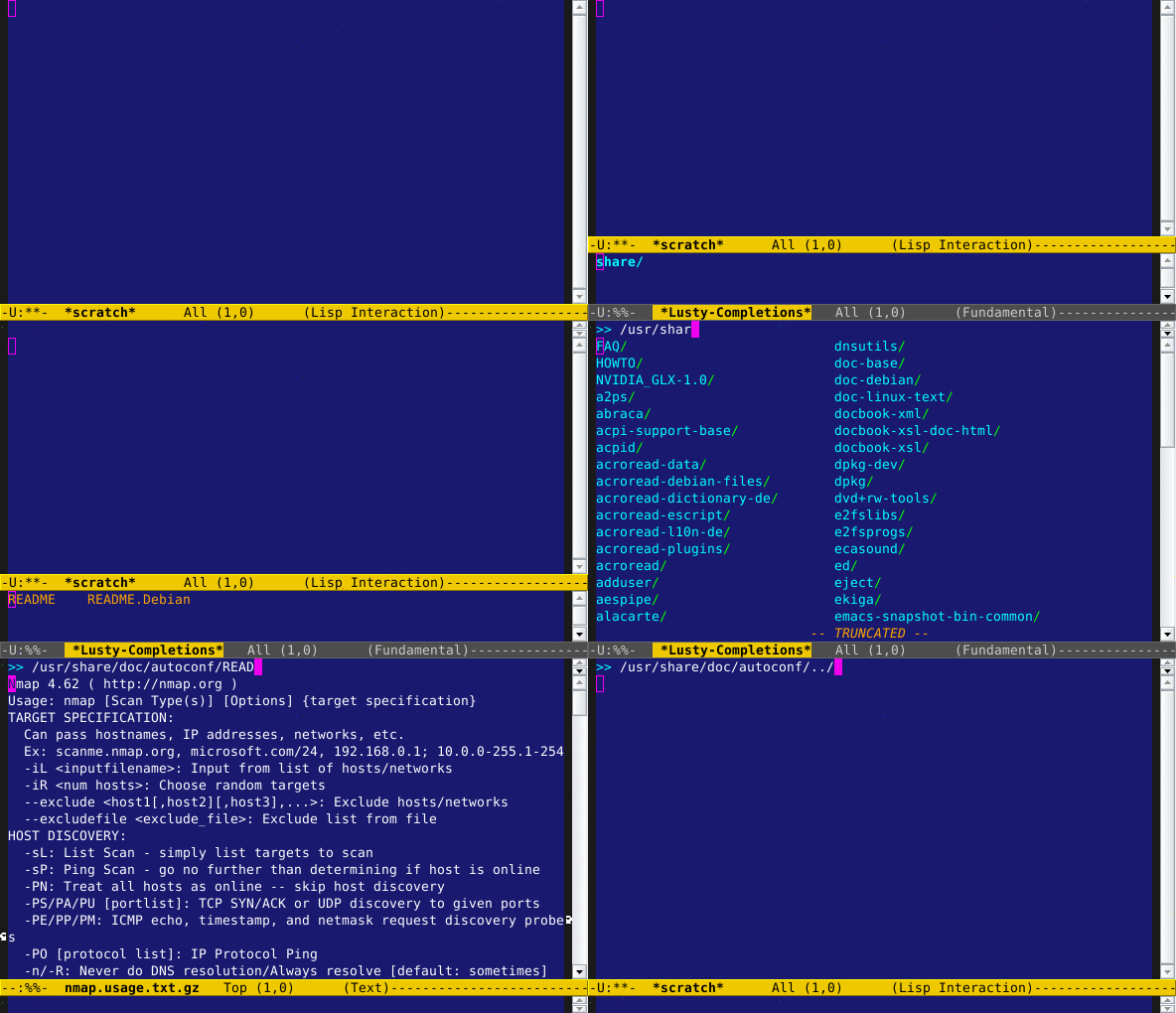
However, I am always looking for new things – and one of those is a sort-of ido-mode substitute. It's called the Lusty Explorer and it's the emacs implementation of an existing vim-plugin. It's quite similar to ido-mode; the difference is mainly that it shows all the files or buffers at the same time, in the way that shells (say, bash or zsh) do auto-completion.

The best way to show how it works is using an screencast (note, this is of a slightly older version). Lusty Explorer uses fuzzy matching; that means that I can type /etc/fo, and all items in /etc/ with names f.*o match.

To install lusty-explorer, simply copy lusty-explorer.el to your load-path, and put something like the following in your .emacs:0

(when (require 'lusty-explorer nil 'noerror)

  ;; overrride the normal file-opening, buffer switching
  (global-set-key (kbd "C-x C-f") 'lusty-file-explorer)
  (global-set-key (kbd "C-x b")   'lusty-buffer-explorer))

Side-note, the (when (require 'lusty-explorer nil 'noerror) ...) is there just make sure that no error is raised when lusty-explorer is not found, and the rest is ignored in that case. I use this construct for all packages that are not necessarily available everywhere I use my .emacs; thus, they will simply be ignored and not cause startup errors.

I've been using Lusty Explorer for about a week now, and I am quite happy with it. I still need some time (and maybe some more customization) to get used to the way it works - for example, I found the way ido-mode handles backspace a bit smarter. Also, ido-mode can be customized to a much greater extent. That might merely be a factor of the relative age of the packages – and I haven't really felt the need to customize Lusty Explorer too much. For now, I think I'm going to keep on using it. It's worth a try at least!

2010-07-16

keyboard macros

Keyboard macros are a truly classic emacs feature. Still, I only started to use them years after I got sucked into emacs – not so uncommon for emacs features… There may be more people like me, so let's raise the awareness a bit.

Keyboard macros allow you to record a number of keystrokes, and replay those at some later point. This can be a great time-saver when you need to do repetitive things. In many cases, they are an easy alternative to writing some elisp to get a job done. Note, keyboard macros are should not be confused with elisp-macros, which are something else altogether.

an example

So, when would we want to use a keyboard macro? Let's take some tedious task -- for example, we have a list of a few hundred names:

Newton, Isaac
Einstein, Albert
Maxwell, James
Turing, Alan
...

and we want to turn that into:

Isaac Newton
James Maxwell
Alan Turing
...

so, roughly, put the last name after the first name, and remove the comma.

We can solve this in different ways; we could simple change each line by hand. That's a fine solution if there are only a few lines, but it gets boring rather quickly.

Another way is to use regular expressions (see Building regular expressions); in this case, it's fairly easy to come up with one (assuming you know regular expressions). But let's see how we can solve it with a keyboard macro.

Schematically, we can solve this with the following:

actionkey
go to beginning of a lineC-a
kill (cut) the first wordM-d
delete the next two charactersDEL DEL
go to the end of the lineC-e
insert a spaceSPC
yank (paste)C-y
go to the next lineC-n

This may look like some magical incantation, but it comes quite natural when you are actually doing the editing.

An important thing to remember when working with keyboard macros is that you do your commands in such a way that they can be repeated for each line. Suppose you would select Newton with shift-select, i.e., C-SPC at the beginning of the line and pressing the right arrow key 6 times – that works for Newton, but not for Einstein. Instead, we need to use M-d ('kill-word') instead.

defining a macro

Now that we have solved the problem for a single line, let's make a keyboard macro.

We move the cursor to the first line, and start the definition by pressing C-x (, or alternatively, F3. Then, we press the commands C-a, M-d, DEL DEL, C-e, SPC, C-y, C-n (as in the list above). To finish the definition, press C-x ), (or F4).

Hurray, we have our macro. Now, let's use it.

using the macro

Now, to execute the last defined macro, you press C-x e. We could repeat that for our whole list, but fortunately there's an easier way to repeat a macro n times, using a prefix argument. For example, to repeat the macro 123 times, you first press C-u 123 and then C-x e.

There's a slightly shorter way to do this: instead of C-u 123 we can write M-123, and for C-x e we can use F4 (kmacro=end-or-call-macro).

You can even repeat the macro until the end of the buffer is reached with C-u 0 C-x e; this only makes sense if the macros ever reaches the end of the buffer of course. (Remember that you can always terminate with C-g, keyboard-quit)

You can also apply your keyboard macro to all lines in the selected area (region) with M-x apply-macro-to-region-lines (or C-x C-k r). Important to remember: this will actually move the cursor (point) to the start of each line, and then execute the macro. If you want your macro like that, the go-to-the-next-line should not be part of your macro, or you will be skipping lines.

saving macros for later use

If you want to use multiple macros, you can name them. You can do this with M-x name-last-kbd-macro. If you name your macro, say, foo (inventive as we are), you can then execute it after that as M-x foo, which will be available until you exit emacs.

If you want to have the macro for future emacs sessions as well, you can use insert-kbd-macro, which will give you an elisp version of your macro. For our example, this will look like:

(fset 'foo 
   [?\C-a ?\M-d delete delete ?\C-e ?  ?\C-y ?\C-n])

Not very readable, but we can put this in .emacs, and we can use it the next time we start emacs as well. We can also add a key binding for this, for example:

(global-set-key (kbd "C-c f") 'foo)

This will bind foo to C-c f.

final notes

Keyboard macros can be useful and easy, but they are fundamentally connected to key presses – so, if you remap your keys to something different, your macros may not work anymore. Also, the macros are pretty much write-only in the way we use them here. You can edit them in the macro editor though, with M-x edit-kbd-macro M-x foo; we'll then get something like:

;; Keyboard Macro Editor.  Press C-c C-c to finish; press C-x k RET to cancel.
;; Original keys: C-a M-d 2*<delete> C-e SPC C-y C-n

Command: foo
Key: none

Macro:

C-a                     ;; move-beginning-of-line
M-d                     ;; kill-word
2*<delete>              ;; delete-char
C-e                     ;; move-end-of-line
SPC                     ;; self-insert-command
C-y                     ;; yank
C-n                     ;; next-line

Keyboard macros can be quite a useful trick in your arsenal. And I have not even gone into more advanced tricks like macros with variations or the macro ring. Please refer to the section Keyboard macros in the emacs manual (C-h r) for all the details.

And, finally, don't let the text-based example limit your imagination – you can turn just about any repetitive sequence of tasks into a macro.

2010-06-30

console apps in emacs with multi-term

multi-term

updated Whenever it makes sense, I try to use emacs for my computer-based activities; surely, programs like The Gimp or a graphical web browser cannot yet be replace by emacs, but I'm making progress. I like the ways emacs gives me to automate and speed-up my tasks; I get some return-on-time-investment.

2010 or not, I still spend quite a bit of time on the console. So why not do that from within emacs? There different ways to run shells within emacs.

The simplest one is shell (i.e,, M-x shell), which starts a simple shell, which does not support which does not support 'graphical' console applications, such as mutt, mc, htop.

Then there are term and ansi-term (M-x ansi-term) that do support such applications, which ansi-term supporting colors as well (it seems to have become the default for term in recent emacs versions).

Another one is the nifty EShell (included with emacs), which is not just a (simple) terminal, but also a full shell environment, and has integration with other things in emacs. It's nice, but has some of the limitations that shell has - you cannot run 'graphical' applications; also, I don't really need a shell, as I am quite happy with zsh (zed shell) already, which is more powerful, and I prefer a shell that works both inside and outside emacs.

For all these reasons, I am using MultiTerm, which has 'graphical' support that ansi-term has, but adds a nice extra, namely support for multiple terminals within emacs. I'm not fully up to date with the exact difference in the terminal support between the two, but I haven't had any problems so far.

You can install multi-term (put it in your load-path), and add the following to your .emacs:

(autoload 'multi-term "multi-term" nil t)
(autoload 'multi-term-next "multi-term" nil t)

(setq multi-term-program "/bin/bash")   ;; use bash
;; (setq multi-term-program "/bin/zsh") ;; or use zsh...

;; only needed if you use autopair
(add-hook 'term-mode-hook
  #'(lambda () (setq autopair-dont-activate t)))


(global-set-key (kbd "C-c t") 'multi-term-next)
(global-set-key (kbd "C-c T") 'multi-term) ;; create a new one

With this, C-c t will jump through your multi-term buffers (create a new one if it doesn not exist yet), while C-c T unconditionally creates a new terminal.

2010-06-17

automatic pairing of brackets and quotes

Some text-editors, notably TextMate for MacOS, have a nice feature where inserting a opening ( will automatically insert the closing ), and put the cursor in between them (and does same for [], {}, and various quote-marks).

Not surprisingly, there are some implementations for emacs as well; the best one I have found so far is called autopair, which was written by João Távora. It usually does things just right. Do things 'just right' is essential for such a tool; even small annoyances can disturb your flow. Autopair tries to do whatever makes the most sense for a given mode (programming language etc.), but it can be tuned as well.

After installation, you can automatically activate it for all modes with (in your .emacs):

(require 'autopair)
(autopair-global-mode 1)

Now, evaluate this or restart emacs, and enjoy the autopairing-magic!

Except for autopairing, autopair also takes care of autocleaning; that is, if I press ( it turns that into () (the pairing part), and if I press Backspace then, it removes the whole () (the cleaning part). This makes things much less annoying if you type a pair by accident. Autopairing is the kind of thing that can get annoying quickly if it does not things exactly right – and autopair succeeds!

Another nice trick it offers is autowrapping – that is, I select a word, press ", and automatically it's turned into "word". To enable that, you need to add the following:

(setq autopair-autowrap t)

Note: you might want to see the notes below about delete-selection-mode and cua-mode.

Anyway, autopair with autowrap makes for a really smooth editing experience, I love it! There are two small issues for me though. First, when the cursor in front of some non-whitespace, I'd like autopairing not to happen, and second, somehow I can't seem to get "-autopairing to work in org-mode; of course, that could be my own fault. These things might be tunable; I haven't tried very hard yet.

delete-selection-mode

Important to mention here is that autopair is (by default) not fully compatible with delete-selection-mode. As you may know, that is the mode that causes emacs to replace the current selection with a character typed, similar to what most other programs do. I think many people have it enabled in their .emacs with something like:

(delete-selection-mode 1)

If you want to keep on using that together with autopair, add the following to your .emacs:

(put 'autopair-insert-opening 'delete-selection t)
(put 'autopair-skip-close-maybe 'delete-selection t)
(put 'autopair-insert-or-skip-quote 'delete-selection t)
(put 'autopair-extra-insert-opening 'delete-selection t)
(put 'autopair-extra-skip-close-maybe 'delete-selection t)
(put 'autopair-backspace 'delete-selection 'supersede)
(put 'autopair-newline 'delete-selection t)

But, not that that still won't give you the autowrap behavior mentioned above. For that, we can use cua-mode.

cua-mode

We discussed CUA-mode before, focusing on its nice rectangle-editing features. But CUA-mode can also be an alternative for delete-selection-mode, and it goes together more nicely with autopair; so, instead of delete-selection-mode and the put's, add the following to your .emacs:

(setq cua-enable-cua-keys nil)           ;; don't add C-x,C-c,C-v
(cua-mode t)                             ;; for rectangles, CUA is nice

See the linked CUA-mode article for the 'why' of that first line. With this change, autopair should be working smoothly, including autowrap.

further customization

As I have hinted at, autopair can be tuned for different modes, and can differentiate between it's behaviour in literal strings, code, comments etc. The default are usually sane, but if you're interested, have a look at the documentation, in particular autopair-extra-pairs and the More tricks-section in the documentation.